How to Migrate from Gmail to Zoho Mail: A Step-by-Step Guide
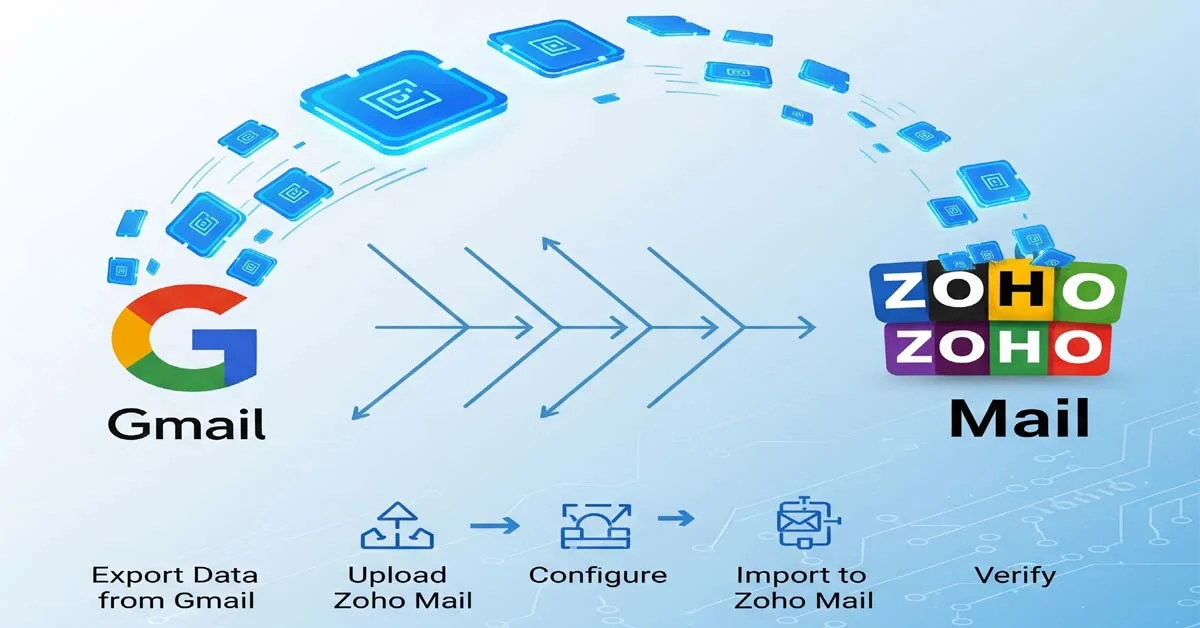
Switching from Gmail to Zoho Mail? Whether you’re an individual or a business, moving your emails, contacts, and calendars may sound complex — but it’s actually simple.
This comprehensive step-by-step guide will show you how to migrate from Gmail to Zoho Mail securely, without losing any data, and with minimal effort.
🌐 Why Switch from Gmail to Zoho Mail?
Zoho Mail has become one of the top Gmail alternatives for professionals and privacy-conscious users.
Here’s why people are switching:
-
🚫 No ads or data tracking
-
🔒 Stronger privacy controls
-
💼 Custom domain support for businesses
-
💸 Affordable pricing plans
-
☁️ Integration with Zoho Workplace apps
If you want more control and privacy, Zoho Mail is an excellent choice.
⚙️ Step 1: Prepare Your Gmail Account
Before you begin, make sure your Gmail account is set up correctly for migration.
✅ Enable IMAP in Gmail
-
Log in to your Gmail account.
-
Click the ⚙️ Settings (gear icon) → See all settings.
-
Go to Forwarding and POP/IMAP.
-
Under “IMAP Access,” select Enable IMAP.
-
Click Save Changes.
This enables Zoho Mail to read and import your Gmail data.
🔒 Create a Google App Password
Because Google no longer supports “less secure apps,” you’ll need an App Password:
-
Go to your Google Account → Security tab.
-
Turn on 2-Step Verification (if it’s not already).
-
Select App Passwords → Choose Mail → Device as Other (Custom name) → Type “Zoho Mail.”
-
Copy the 16-digit password.
You’ll use this instead of your normal Gmail password during migration.
🧭 Step 2: Set Up Your Zoho Mail Account
You can use Zoho Mail for personal or business email.
👤 For Personal Use
-
Sign up for a Personal Email account.
-
Once logged in, go to Settings → Import/Export Emails.
-
Choose Import → Gmail (IMAP) as the source.
🏢 For Business Users
-
Open Zoho Mail Admin Console.
-
Add and verify your domain name (TXT or CNAME record).
-
Create user accounts or upload users via CSV.
-
Go to Data Migration to begin Gmail-to-Zoho transfer.
🔁 Step 3: Start the Gmail to Zoho Mail Migration
Zoho provides two tools for data migration — use the one that fits your needs.
Option 1: Zoho Mail Web Migration Tool (Recommended)
-
In Zoho Admin Console, go to Data Migration → Create New Migration.
-
Select Migration Type: IMAP or Gmail.
-
Enter:
-
Server:
imap.gmail.com -
Port:
993 -
SSL: Enabled
-
-
Use your Gmail App Password.
-
Choose your Zoho user and folders to migrate.
-
Click Start Migration.
Zoho will automatically import all your emails.
Option 2: Zoho Mail IMAP Desktop Migration Tool
-
Download from Zoho Migration Tool.
-
Select IMAP Migration.
-
Enter Gmail (source) and Zoho (destination) credentials.
-
Add users manually or via CSV.
-
Start migration.
This tool provides detailed logs and offline processing for large migrations.
📇 Step 4: Import Contacts and Calendar
After emails, it’s time to bring over your contacts and calendar.
🧾 Import Gmail Contacts
-
In Gmail → Google Contacts → Export → vCard format.
-
In Zoho Mail → Contacts → Import → Upload vCard.
-
Click Import to finish.
📅 Import Google Calendar
-
In Google Calendar → Settings → Export → .ICS file.
-
In Zoho Calendar → Settings → Import Calendar → Upload .ICS file.
-
Your events will now appear in Zoho Mail.
📨 Step 5: Update MX Records (Business Only)
To receive new emails in Zoho instead of Gmail, update your MX Records.
-
Log in to your domain DNS manager (GoDaddy, Cloudflare, Namecheap, etc.).
-
Remove old Google MX records.
-
Add Zoho Mail MX records:
| Priority | Host | Value |
|---|---|---|
| 10 | @ | mx.zoho.in |
| 20 | @ | mx2.zoho.in |
| 50 | @ | mx3.zoho.in |
-
Save changes and wait for DNS propagation (usually 2–24 hours).
Once updated, all incoming mail will go to Zoho Mail.
🔍 Step 6: Verify and Complete the Migration
After migration:
-
Log in to Zoho Mail and confirm all emails, folders, and attachments are imported.
-
Check Migration Reports in Zoho Admin Console.
-
Update Outlook, Apple Mail, or Thunderbird with Zoho Mail IMAP settings.
-
Notify your contacts if your email address has changed.
💡 Pro Tips for a Smooth Migration
-
Run a test migration first for one mailbox.
-
Keep Gmail active for a few days post-migration.
-
Use Zoho Mail’s mobile app for easy access.
-
If you use Google Workspace, try Zoho Workplace for full suite migration (Mail + Docs + Drive).
❓Frequently Asked Questions (FAQ)
1. Can I transfer all my Gmail emails to Zoho Mail?
Yes! Zoho Mail’s migration tools allow you to transfer all emails, folders, and attachments securely from Gmail to Zoho Mail.
2. How long does the Gmail-to-Zoho Mail migration take?
Migration time depends on your mailbox size.
For most users, it takes a few minutes to a couple of hours. Larger accounts may take longer.
3. Will I lose my old emails after migrating to Zoho Mail?
No. Your Gmail data remains intact even after migration.
Zoho only copies your emails; it doesn’t delete anything from Gmail.
4. Is Zoho Mail safer than Gmail?
Yes — Zoho Mail is ad-free, private, and GDPR-compliant.
Unlike Gmail, Zoho doesn’t scan your emails for advertising or analytics.
5. Can I migrate multiple Gmail accounts at once?
Yes. Businesses can use the Zoho Mail Admin Console or IMAP Migration Tool to transfer multiple Gmail accounts simultaneously.
6. Do I need to pay to migrate from Gmail to Zoho Mail?
No, the migration process is free for both personal and business users.
However, advanced features like domain-based email or Zoho Workplace plans may require a subscription.
🚀 Final Thoughts
Migrating from Gmail to Zoho Mail is simpler than you think.
With Zoho’s built-in tools, you can transfer your emails, contacts, and calendars securely and efficiently.
Once you’re set up, you’ll enjoy an ad-free, business-class email experience with Zoho’s strong privacy policies and clean interface.
Whether you’re moving for privacy, professionalism, or productivity — Zoho Mail is a smart step forward.
📌 Quick Summary
| Task | Description |
|---|---|
| Enable IMAP | Allow Zoho access to Gmail data |
| Create App Password | Use secure login credentials |
| Use Migration Tool | Import emails and folders |
| Import Contacts & Calendar | Upload vCard & .ICS files |
| Update MX Records | Direct new emails to Zoho |